weave.Markdown.
- Web App
- Python
- TypeScript
- HTTP API
To view a Call in the UI:
- Navigate to wandb.ai and select your project.
- In the Weave project sidebar, click Traces.
- Find the Call you want to view in the table.
- Click on the Call to open its details page.
Chat-style rendering in the Trace view
When you open a trace and select a call in the trace tree, the Call tab shows inputs and outputs for that op. For many LLM calls, Weave recognizes common provider request and response shapes and renders them as a chat-style layout (conversation bubbles) instead of only raw JSON. This applies to a single call inside the Trace view. For multi-turn sessions and the Threads chat pane, see Chat view behavior.When chat-style rendering appears
Weave looks for structured message data in the logged inputs and outputs. Examples include:- OpenAI Chat Completions-style requests: A
messagesarray whose elements includeroleandcontent, similar to the payload passed toclient.chat.completions.create(...). When you use OpenAI tracing, those calls are logged in this shape automatically. - Matching responses: Response objects that carry assistant text in fields such as
choicesand nestedmessagecontent, consistent with Chat Completions API responses.
chat_completion calls) can also render as chat in the UI.
When you see raw JSON instead
If inputs and outputs do not match a recognized pattern, the Call tab shows structured JSON. To improve readability while keeping the underlying data, useweave.Markdown with postprocess_inputs and postprocess_output on @weave.op functions, as described in the next section.
Customize rendered traces with weave.Markdown
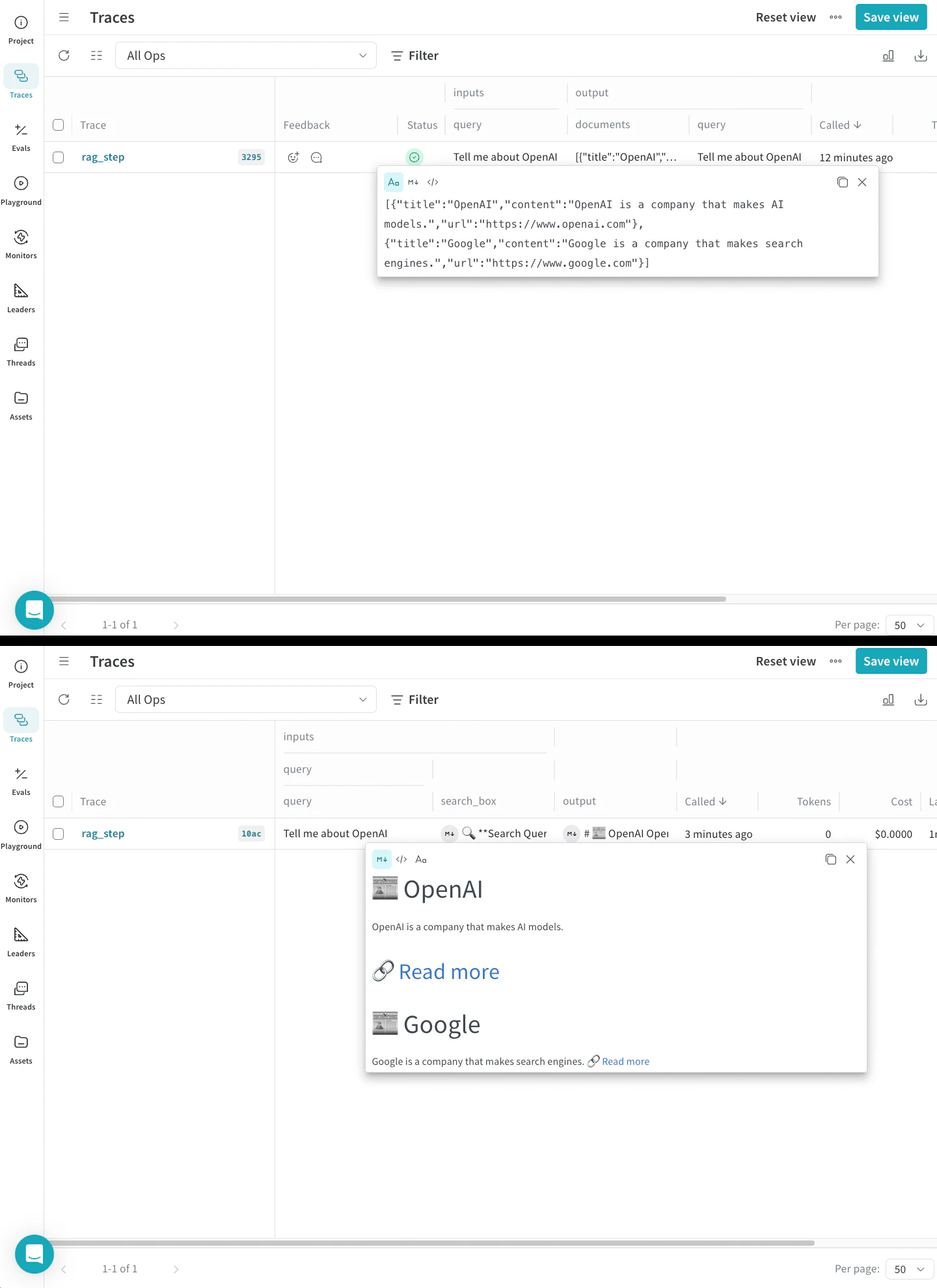
Use weave.Markdown to customize how your trace information is displayed without losing the original data. This allows you to render your inputs and outputs as readable blocks of formatted content while preserving the underlying data structure.
- Python
- Typescript
Use
postprocess_inputs and postprocess_output functions in your @weave.op decorator to format your trace data. The following code sample uses postprocessors to render a call in Weave with emojis and more readable formatting: